Get better at iT
Tableau: Tricks, Tips & Custom Vizualizations

Ignacio Gargiulo,

If you’re working with Tableau and your dashboard suddenly stops updating, it’s often because the underlying data source — in this case, a Google Sheet — has become unavailable. Whether it's due to lost permissions, deletion, or corruption, your insights are now at risk. But don’t worry — you don’t need to rebuild your dashboard from scratch. With a few steps, you can rewire your workbook to point to a new Google Sheet and get everything back on track.
The Scenario: Broken Data Link
Your Tableau workbook was originally connected to a specific Google Sheet. This worked fine — until something changed. Maybe someone accidentally deleted the file. Maybe permissions were altered and now Tableau can’t access it. Or maybe the file was moved or renamed.
Whatever the reason, your dashboard is now stuck — unable to pull fresh data and losing its value with each passing hour.
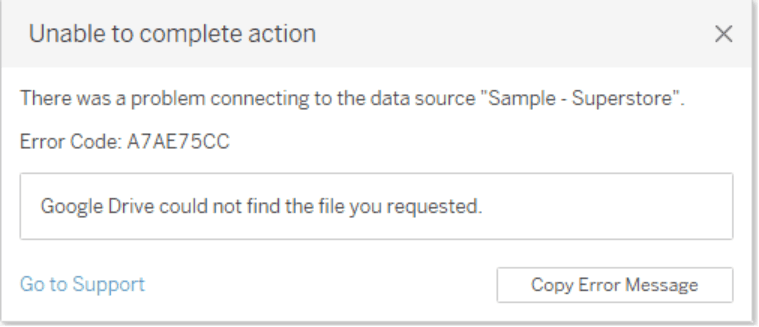
The Problem: Inaccessible Google Sheet
Tableau depends on live connections to its data sources. If a Google Sheet becomes inaccessible, Tableau can't retrieve or refresh data, which means:
Your charts and tables no longer reflect the latest information
Scheduled data refreshes fail
Your users might be seeing outdated or incomplete data
This can be a big deal, especially in data-driven environments where accuracy and timeliness matter.
The Solution: Repointing the Workbook
Rather than rebuilding your workbook, you can simply edit the internal configuration to point to a new Google Sheet. This method is quick, efficient, and avoids unnecessary work.
Here’s how to do it, step-by-step:
Step-by-Step Fix
1. Download your Tableau workbook (.twbx) locally.
You’ll need to work with the file directly, so save a copy to your computer.
2. Change the file extension from .twbx to .zip.
Tableau workbooks in .twbx format are actually zipped folders that contain multiple files, including the .twb file which stores the workbook’s structure and data connections.

->

3. Extract the contents using a file compression tool (e.g. 7-Zip or WinRAR).
Once unzipped, you’ll see several files.
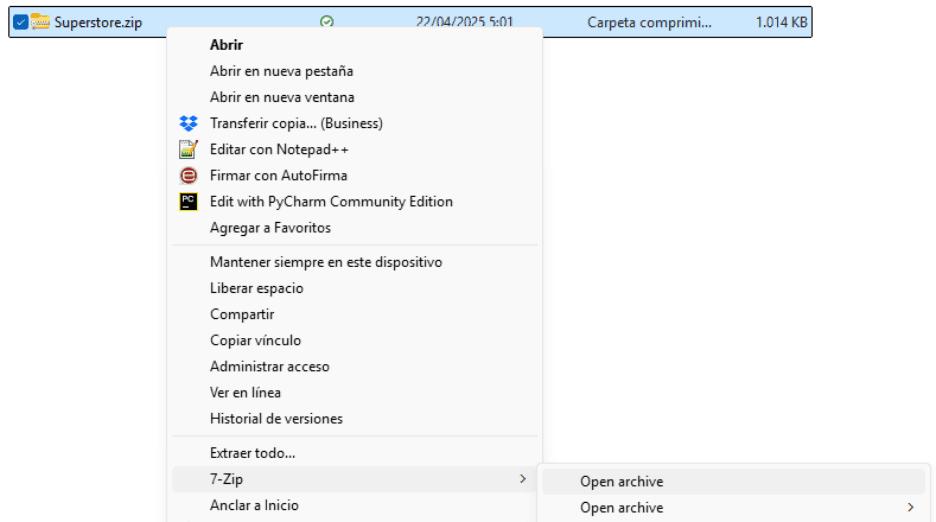
The one we care about is the .twb file.
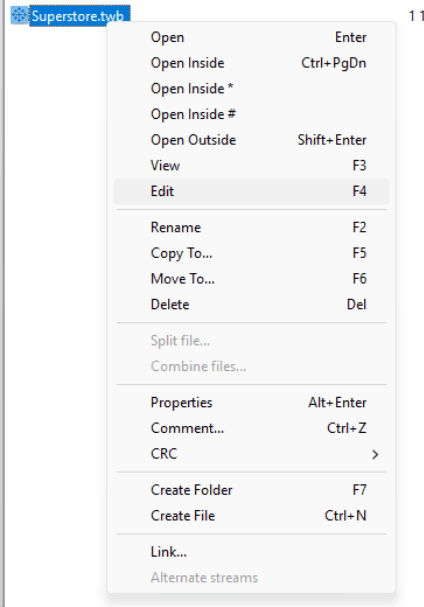
4. Open the .twb file in a text/code editor.
Use a text editor like VS Code or Notepad++. The .twb file is XML-based, so it’s readable — even if a bit dense.
5. Search for the current Google Sheet URL.
Look for tags or entries like <connection>, <cloudfile:googledrive-excel-direct>, or https://docs.google.com/spreadsheets/.
This is where Tableau stores the link to your original data source.

6. Replace the following attributes in XML Structure:
cloudFileId : The ID of the file
cloudFileName: The name of the file.
cloudFileMetadata_-_folder : The folder id where the file is located on the google drive.
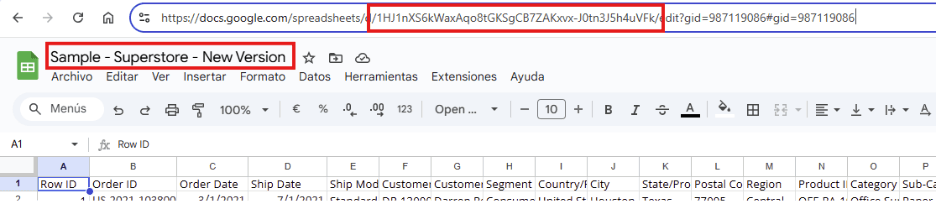
Make sure the new sheet is shared appropriately (e.g., with access set to "Anyone with the link" if needed).
Be careful to keep the XML structure intact.
7. Save the .twb file.
Don’t change formatting or spacing if you can avoid it — just update the URL.
8. Re-zip the folder and rename it back to .twbx.
Make sure the folder structure remains the same when you zip it back up.
9. Open the modified .twbx file in Tableau.
Tableau will now reference the new Google Sheet, and your dashboard should refresh as expected.
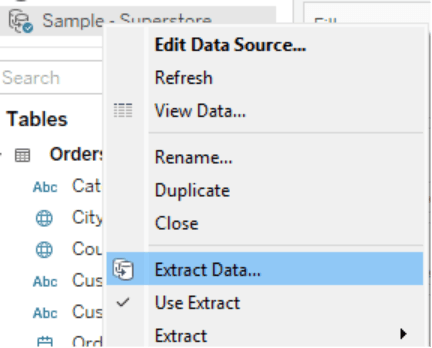
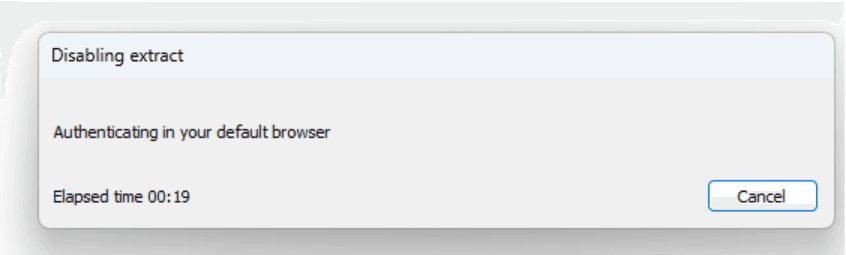
Extract is updated successfully.
Pro Tips
Back up your original .twbx file before editing. It’s always good to have a fallback.
Test the new link before deploying to production dashboards.
Validate permissions on the new Google Sheet — make sure Tableau’s access method is supported (usually OAuth or anonymous/public sharing).
Why This Matters
This workaround isn’t just a patch — it’s a lightweight solution that helps you move fast, especially in fast-paced data environments. It gives you control without needing to rebuild complex dashboards or dig into Tableau’s server settings.
It also reflects a broader principle:
Smart solutions aren't always about doing more — they're about knowing what to do when something breaks.
By mastering quick fixes like this, you empower your team to stay focused on insight, not infrastructure.